
IPTV for Android TV
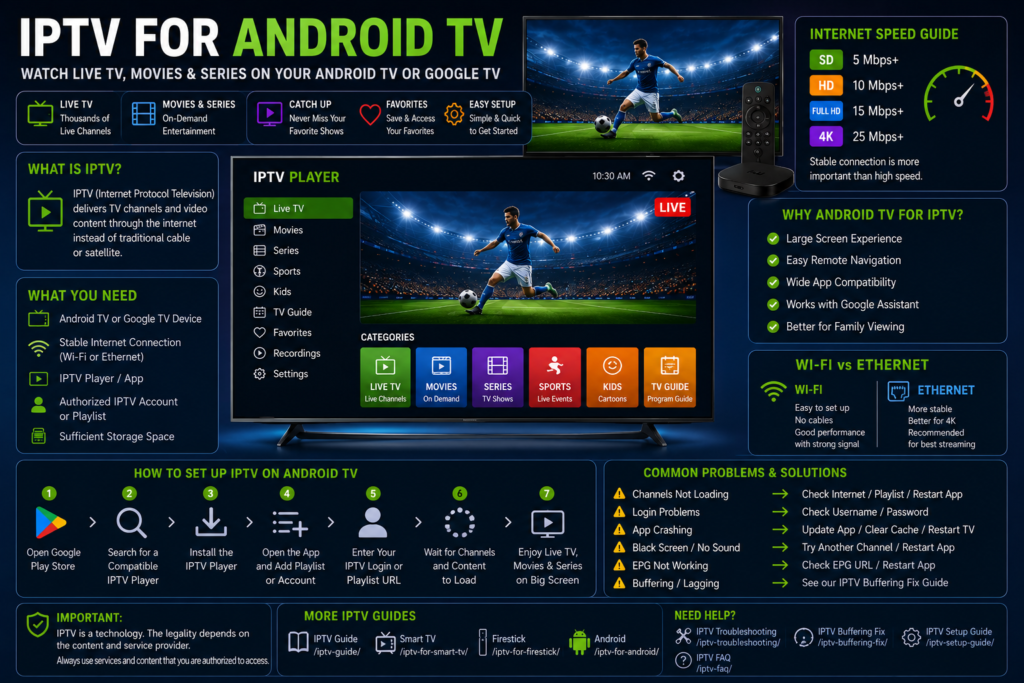
IPTV for Android TV: Complete Setup Guide 2026
IPTV for Android TV provides a convenient way to watch internet-delivered television and video content on a compatible Android TV or Google TV device. With a stable internet connection, a compatible IPTV player, and an authorized IPTV service, you can access supported live channels and other streaming content directly on your television.
This guide explains how IPTV works on Android TV, what you need before getting started, how to install and configure a compatible IPTV player, and how to solve common problems such as buffering, channels not loading, login errors, and playback issues.
Important: IPTV is a technology for delivering video over an internet connection. Always use IPTV services and content that you are authorized to access.
What Is IPTV for Android TV?
IPTV stands for Internet Protocol Television. It is a method of delivering television and video content through an internet or IP network instead of traditional cable, satellite, or terrestrial delivery.
Android TV provides access to applications through its app ecosystem, allowing compatible IPTV players to be installed directly on supported televisions and streaming devices.
Once an IPTV player is installed, you can configure it using an authorized IPTV account, playlist, or other supported connection method.
What Do You Need for IPTV on Android TV?
Before setting up IPTV, you normally need:
- An Android TV or Google TV device
- A compatible television or display
- A stable internet connection
- An IPTV-compatible player
- An authorized IPTV account, playlist, or connection information
- A remote control
- Sufficient device storage
The exact requirements depend on your television, streaming device, Android TV version, application, and IPTV service.
How Does IPTV Work on Android TV?
The basic process is:
Internet → Router → Android TV → IPTV Player → Authorized IPTV Service → TV Screen
Your Android TV device connects to your internet connection and runs a compatible IPTV player.
The player then connects to the authorized service or playlist you have configured and displays the available content.
Streaming performance depends on several factors, including:
- Internet speed
- Network stability
- Wi-Fi signal
- Device performance
- Application performance
- Video resolution
- Service availability
Android TV vs Google TV
Android TV and Google TV are closely related platforms, but the user interface and features can differ.
Android TV focuses on an application-based television experience, while Google TV provides a more personalized content discovery interface.
Both platforms can support compatible streaming applications, but application availability can depend on the specific device and region.
Always check your television’s current app store before installing an IPTV player.
Which Devices Support Android TV IPTV?
Android TV and Google TV are available on many televisions and streaming devices.
Common brands and platforms include:
- Sony Android TV
- TCL Android TV
- Hisense Android TV
- Philips Android TV
- Google TV devices
- Android TV streaming boxes
- Other compatible Android TV televisions
Not every model has identical software or application support.
Check your specific TV model and operating system before installing an application.
IPTV for Sony Android TV
Many Sony televisions use Android TV or Google TV.
The general setup process is:
- Connect the Sony TV to the internet.
- Open Google Play Store or the available application store.
- Search for a compatible IPTV player.
- Install the application.
- Open the IPTV player.
- Enter your authorized IPTV account or playlist information.
- Allow the application to load available content.
- Test playback.
The exact menus can vary depending on the Sony TV model and software version.
IPTV for TCL Android TV
TCL offers televisions using Android TV or Google TV depending on the model and region.
For compatible models:
- Connect your TCL TV to the internet.
- Open the application store.
- Search for a compatible IPTV player.
- Install the application.
- Launch the player.
- Add your authorized IPTV account or playlist.
- Wait for the content to load.
- Test several channels.
Check your specific TCL model before assuming that an application is supported.
IPTV for Hisense Android TV
Some Hisense models use Android TV or Google TV, while other models may use different operating systems.
If your Hisense television uses Android TV or Google TV:
- Connect the TV to the internet.
- Open the available application store.
- Search for a compatible IPTV player.
- Install the application.
- Configure your authorized account or playlist.
- Load the available content.
- Test playback.
The setup can differ between models and regions.
IPTV for Philips Android TV
Compatible Philips Android TV models can install applications through the available Google Play Store or application system.
The general process is:
- Connect the Philips TV to the internet.
- Open the application store.
- Find a compatible IPTV player.
- Install the application.
- Open the player.
- Enter your authorized connection details.
- Load your channels or content.
- Test playback.
Always check your exact model and operating system.
IPTV for Google TV
Google TV provides an interface for discovering and running supported applications.
The general IPTV setup process is:
- Connect Google TV to the internet.
- Open the application store.
- Search for a compatible IPTV player.
- Install the application.
- Launch the player.
- Add your authorized account or playlist.
- Allow content to load.
- Select a channel or program to test.
Application availability may vary depending on your device and region.
Internet Speed Requirements for IPTV on Android TV
Your required internet speed depends on the video resolution and network conditions.
As a general guideline:
| Video Quality | Suggested Stable Speed |
|---|---|
| SD | 5 Mbps or more |
| HD | 10 Mbps or more |
| Full HD | 15 Mbps or more |
| 4K | 25 Mbps or more |
These are general recommendations rather than guarantees.
A stable connection is important because high advertised speed does not prevent buffering if your network repeatedly disconnects or becomes congested.
Wi-Fi vs Ethernet for Android TV
Android TV devices can often connect through Wi-Fi, while some televisions and streaming devices also provide Ethernet connectivity.
Wi-Fi
Wi-Fi is convenient and easy to configure.
It works well when:
- The router is reasonably close
- Signal strength is good
- There is limited interference
- Your network is not heavily congested
Ethernet
Ethernet can provide a more consistent connection.
It can be useful for:
- 4K streaming
- Long viewing sessions
- TVs located close to the router
- Homes with crowded Wi-Fi networks
- Reducing wireless interference
If you regularly experience buffering over Wi-Fi, testing Ethernet can help determine whether the wireless network is causing the problem.
How to Choose an IPTV Player for Android TV
When selecting an IPTV player, consider:
- Android TV compatibility
- Google TV compatibility where applicable
- Playlist support
- EPG support
- Favorites
- Search
- Multiple playlists
- Playback controls
- Regular updates
- Application stability
- Developer reputation
- Privacy and permissions
Choose applications from trusted sources and check their current compatibility.
How to Install an IPTV Player on Android TV
The simplest approach is to use a compatible application from the official application store.
Step 1: Open the App Store
From your Android TV home screen, open Google Play Store or the appropriate application store.
Step 2: Search for an IPTV Player
Search for a compatible IPTV player.
Step 3: Review the Application
Check the application description, compatibility, developer information, permissions, and reviews.
Step 4: Install the Application
Select the application and install it.
Step 5: Open the Player
Launch the IPTV player after installation.
Step 6: Configure Your Account
Use your authorized IPTV account, playlist, or supported connection information.
How to Add IPTV Information on Android TV
Different IPTV players support different connection methods.
Depending on the application, you may need:
- Username
- Password
- Playlist URL
- M3U playlist
- Server information
- Other supported connection details
The general process is:
- Open the IPTV player.
- Select Add Playlist or Add Account.
- Choose the appropriate connection method.
- Enter your authorized information.
- Save the configuration.
- Wait for content to load.
- Test playback.
Keep your account information private.
How to Load IPTV Channels on Android TV
Once your account or playlist is configured, the application may load the available categories automatically.
Depending on the IPTV player, you may see:
- Live TV
- Sports
- Movies
- Series
- Favorites
- Recently watched
- TV Guide
- Search
- Catch-up where supported
The available content depends on the IPTV service and authorized account.
How to Use IPTV on Android TV
After your channels have loaded:
- Open the IPTV player.
- Select Live TV or another category.
- Browse available content.
- Select a channel or program.
- Wait for playback.
- Use the remote to control playback.
- Add frequently watched channels to Favorites if supported.
A TV-based IPTV setup is generally more comfortable for longer viewing sessions than a phone or tablet.
How to Improve IPTV Streaming on Android TV
If IPTV playback is not smooth, try these steps.
Use Ethernet
If your television supports Ethernet and is close to your router, a wired connection may provide better stability.
Improve Wi-Fi Signal
If you use Wi-Fi, move the router or TV where possible to improve signal strength.
Restart the Router
Restarting your router can resolve temporary network issues.
Restart Android TV
Restarting the TV or streaming device can clear temporary software problems.
Reduce Network Usage
Other devices streaming video, downloading files, or gaming can consume available bandwidth.
Update Android TV
Check for available system updates for your television or streaming device.
Update Your IPTV Player
Install available updates for the IPTV application.
Test Lower Video Quality
If high-resolution video buffers frequently, test a lower resolution to determine whether bandwidth is the limiting factor.
IPTV Buffering on Android TV
Buffering occurs when the device cannot receive video data quickly enough to maintain continuous playback.
Common causes include:
- Weak Wi-Fi
- Network congestion
- Unstable internet
- Router problems
- Device performance
- IPTV application problems
- High video resolution
- Temporary service-side issues
Start by checking your internet connection and testing several different channels.
For more detailed solutions, see our IPTV Buffering Fix guide.
Common IPTV Problems on Android TV
IPTV Channels Keep Loading
If channels continuously load:
- Check your internet connection.
- Restart the IPTV application.
- Restart Android TV.
- Restart the router.
- Test another channel.
- Check your account or playlist information.
If only one channel is affected, the problem may be related to that specific stream.
IPTV Login Is Not Working
Verify your username, password, playlist URL, or other connection information.
Also check whether your authorized account is active.
IPTV App Is Not Opening
Try:
- Closing the application.
- Restarting Android TV.
- Checking for application updates.
- Checking for system updates.
- Checking available storage.
- Reinstalling the application if necessary.
IPTV App Keeps Crashing
Possible causes include outdated software, insufficient storage, application bugs, or compatibility issues.
Update the application and Android TV software where appropriate, then restart the device.
IPTV Shows a Black Screen
Try another channel first.
If other channels work, the issue may be specific to the original stream.
If all channels show a black screen, restart the application and check for updates.
IPTV Has Sound but No Picture
Test another channel and restart the IPTV player.
If the issue affects all content, check the application’s compatibility and available updates.
EPG Is Not Loading
EPG information depends on the IPTV service and application.
Check your playlist configuration and make sure the EPG information provided by the service is correctly configured.
How to Clear an IPTV App Cache on Android TV
If an IPTV player becomes slow or unstable, clearing its cache can sometimes help.
The general process is:
- Open Settings.
- Select Apps.
- Find your IPTV player.
- Open the application information page.
- Select Storage or Storage & Cache.
- Select Clear Cache.
- Reopen the application.
Menu names can differ between Android TV and Google TV devices.
Be careful with Clear Data because it may remove saved application settings and account information.
Android TV Storage and Performance
Insufficient storage can affect application performance.
If your device is almost full:
- Remove applications you no longer use.
- Delete unnecessary downloads.
- Clear temporary application caches.
- Remove unused files.
- Restart the device.
Keeping some free storage can help Android TV applications operate normally.
Can Android TV Stream IPTV in 4K?
Compatible Android TV and Google TV devices can support 4K streaming when the hardware, television, application, stream, and internet connection all support the required resolution.
For stable 4K streaming, you should have:
- A compatible 4K television
- A compatible Android TV or Google TV device
- A 4K-capable stream
- A suitable IPTV player
- A stable high-speed internet connection
If 4K playback constantly buffers, test a lower resolution to determine whether network performance is the problem.
Can You Use IPTV on Multiple Android TV Devices?
Whether one IPTV account can be used on multiple Android TV devices depends on the terms and simultaneous-connection limits of your IPTV service.
Some services may allow multiple devices, while others may limit simultaneous connections.
Always check your service’s conditions before connecting additional devices.
IPTV for Android TV vs Smart TV
Android TV is itself a Smart TV platform, but it provides a more standardized Android application ecosystem.
| Feature | Android TV | Other Smart TV Platforms |
|---|---|---|
| Application ecosystem | Android/Google Play on supported devices | Depends on manufacturer |
| IPTV player choice | Often broad | Depends on TV platform |
| Google services | Supported | Varies |
| Remote control | Yes | Yes |
| Internet | Required for IPTV | Required for IPTV |
| Device options | TVs and streaming devices | Mostly TV-specific |
If you have another Smart TV platform, see our IPTV for Smart TV guide.
IPTV vs Cable TV
IPTV and cable television use different delivery methods.
| Feature | IPTV | Cable TV |
|---|---|---|
| Delivery | Internet/IP network | Cable network |
| Internet required | Yes | Usually no |
| Device flexibility | Often high | Depends on provider |
| Mobile viewing | Possible on supported devices | Usually more limited |
| Performance | Depends on internet | Depends on cable infrastructure |
The best choice depends on your location, internet connection, available services, devices, and viewing requirements.
For a detailed comparison, see IPTV vs Cable TV.
Is IPTV Legal on Android TV?
Android TV is a television operating system and does not determine whether IPTV content is legal.
The legality depends on the IPTV service and content being accessed.
IPTV technology can be used for legitimate services as well as unauthorized content distribution.
Always use IPTV services and content that you are authorized to access.
Frequently Asked Questions
Can I use IPTV on Android TV?
Yes. Compatible IPTV players can be installed on supported Android TV and Google TV devices.
Does IPTV require internet on Android TV?
Yes. Internet-based IPTV requires a network connection to receive streaming content.
Is Ethernet better than Wi-Fi for IPTV?
Ethernet can provide a more consistent connection and can be useful for high-resolution streaming or homes with congested Wi-Fi.
Why does IPTV keep buffering on Android TV?
Buffering can be caused by weak Wi-Fi, network congestion, unstable internet, router problems, device performance, application problems, high video quality, or temporary service issues.
How do I fix IPTV buffering on Android TV?
Check your internet connection, restart your router and Android TV, update your IPTV player, improve Wi-Fi signal strength, or test Ethernet.
For more information, see our IPTV Buffering Fix guide.
Why are my IPTV channels not loading?
Check your internet connection, account information, playlist configuration, application, and whether the problem affects all channels or only specific streams.
Why does my IPTV app keep crashing?
Possible causes include outdated software, insufficient storage, application bugs, compatibility problems, or device limitations.
Can Android TV play IPTV in 4K?
Yes, compatible Android TV devices can support 4K IPTV playback when the TV, device, stream, application, and internet connection support 4K.
Can I use IPTV on Sony Android TV?
Compatible Sony Android TV and Google TV models can use supported IPTV applications. Check the specific model and application compatibility.
Can I use IPTV on TCL Android TV?
Compatible TCL Android TV and Google TV models can use supported IPTV players. Application availability varies by model and region.
Can I use IPTV on Hisense Android TV?
Some Hisense models use Android TV or Google TV and can support compatible IPTV applications. Other Hisense models may use different operating systems.
Can I use IPTV on Philips Android TV?
Compatible Philips Android TV models can support IPTV players available through the device’s application ecosystem.
Can one IPTV account work on multiple Android TV devices?
That depends on the device and simultaneous-connection limits of your IPTV service.
More IPTV Guides
Continue learning with our other IPTV resources:
- IPTV Guide – Complete beginner’s IPTV guide
- IPTV for Smart TV – Smart TV setup information
- IPTV for Firestick – Firestick IPTV setup guide
- IPTV for Android – IPTV for Android phones and tablets
- IPTV for iPhone – IPTV for iPhone and iPad
- IPTV Troubleshooting – Solutions to common problems
- IPTV Buffering Fix – Ways to reduce buffering
- IPTV Setup Guide – General IPTV setup instructions
- IPTV FAQ – Common IPTV questions
Final Thoughts
Using IPTV for Android TV can provide a convenient way to access internet-delivered television and video content on a large screen.
For the best experience, use a compatible IPTV player, maintain a stable internet connection, keep your Android TV software updated, and use IPTV services and content that you are authorized to access.
If you are new to IPTV, start with our IPTV Guide. If you experience playback problems, visit our IPTV Troubleshooting and IPTV Buffering Fix guides.